Getting Started
This guide walks you through your first login and orients you around the Vincenty interface.
Prerequisites
Vincenty must be running. If you are deploying it yourself, see the Quick Start section.
First Login
- Open your browser and navigate to your Vincenty instance (default:
http://localhost:3000). - You will see the login screen.
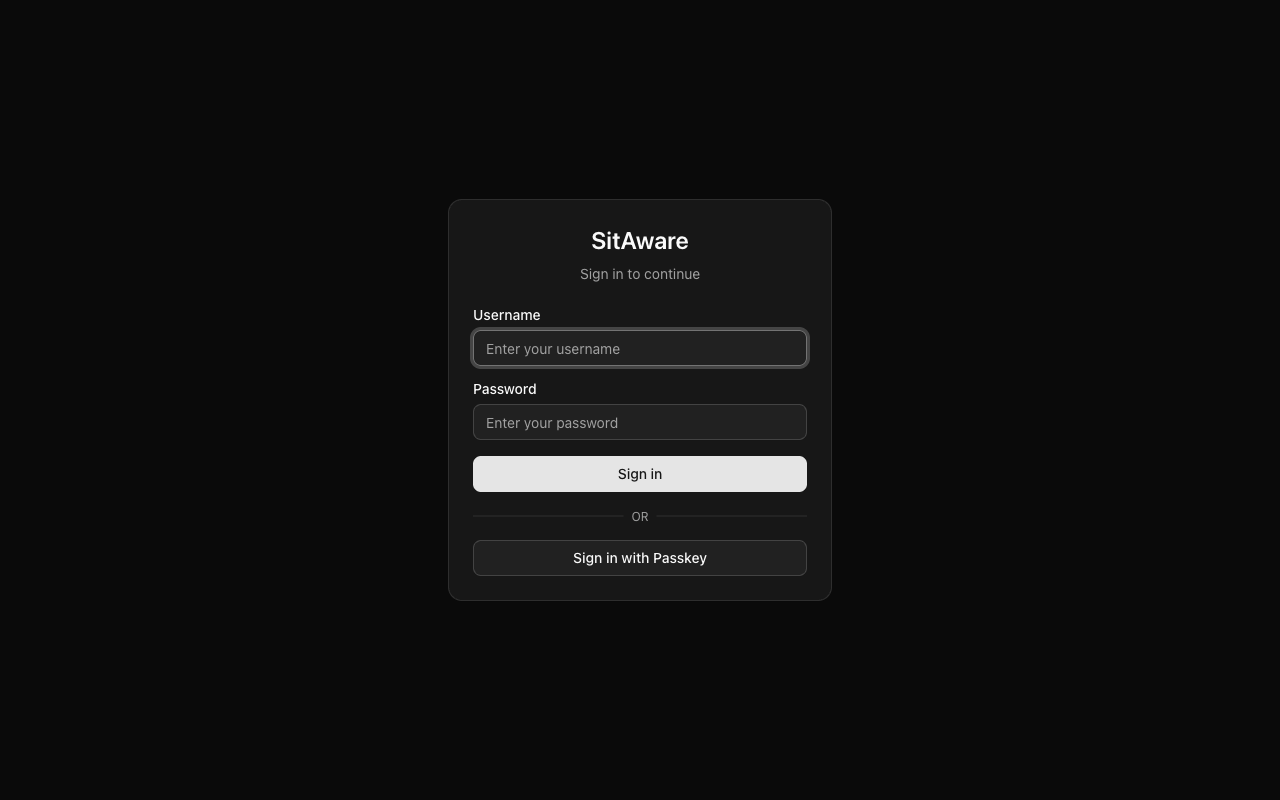
- Enter your username and password. If this is a fresh installation, use the default admin credentials:
- Username:
admin - Password:
changeme - Click Sign in.
Passkey login: If you have registered a passkey (see MFA Setup), you can click Sign in with Passkey to authenticate without a password.
The Dashboard
After logging in, you land on the Dashboard.
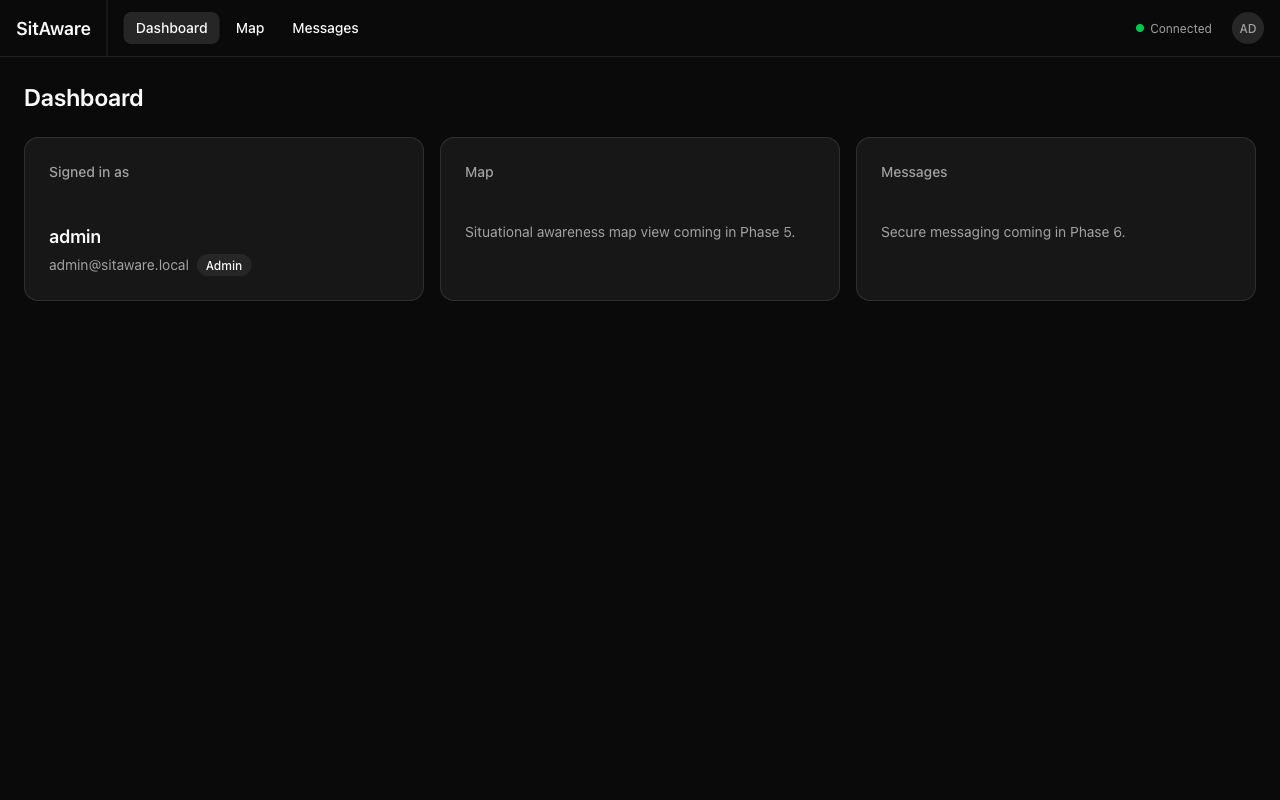
The dashboard shows: - Your identity -- who you are signed in as, your email, and your role (Admin or User) - Quick links to the Map and Messages sections - Connection status in the top-right corner -- a green dot with "Connected" means the real-time WebSocket connection is active
Navigation
The top navigation bar is always visible and provides access to the main sections:
| Link | Description |
|---|---|
| Dashboard | Overview and quick stats |
| Map | Real-time situational awareness map |
| Messages | Group and direct messaging |
Your avatar/initials appear in the top-right corner. Click it to access: - Account Settings -- profile, security, devices, activity, groups - Server Settings -- (admin only) users, groups, map config, security, audit logs - Sign Out
Connection Status
The green indicator in the header shows your real-time connection status: - Connected (green dot) -- WebSocket is active, you are receiving live updates - Disconnected (red/no dot) -- connection lost, the client will automatically attempt to reconnect
Key Concepts
Users and Roles
- Admin -- full access to everything, including user management and server configuration
- User -- standard access, limited to their own groups and data
Groups
Groups are how teams are organized. You must be a member of a group to see its members' locations and messages. Each group membership has permissions: - Can Read -- see group members' locations and messages - Can Write -- send messages and share your location to the group - Group Admin -- manage members within the group
Devices
A device represents an endpoint you use to access Vincenty (e.g., your laptop browser, a phone, a tablet). Devices are auto-registered when you log in from a web browser. One device can be marked as Primary.
Next Steps
- Using the Map -- learn about location markers, drawing tools, replay, and measurement
- Messaging -- send group and direct messages with file attachments
- Location Sharing -- enable and manage real-time location sharing
- MFA Setup -- secure your account with multi-factor authentication
- Account Settings -- customize your profile, avatar, and map marker
- Admin Guide -- (admins) manage users, groups, map sources, and audit logs