Account Settings
Manage your profile, avatar, map marker appearance, devices, and view your activity log.
Accessing Account Settings
Click your avatar/initials in the top-right corner of the navigation bar, then select Account Settings. The settings are organized into tabs in the left sidebar.
General
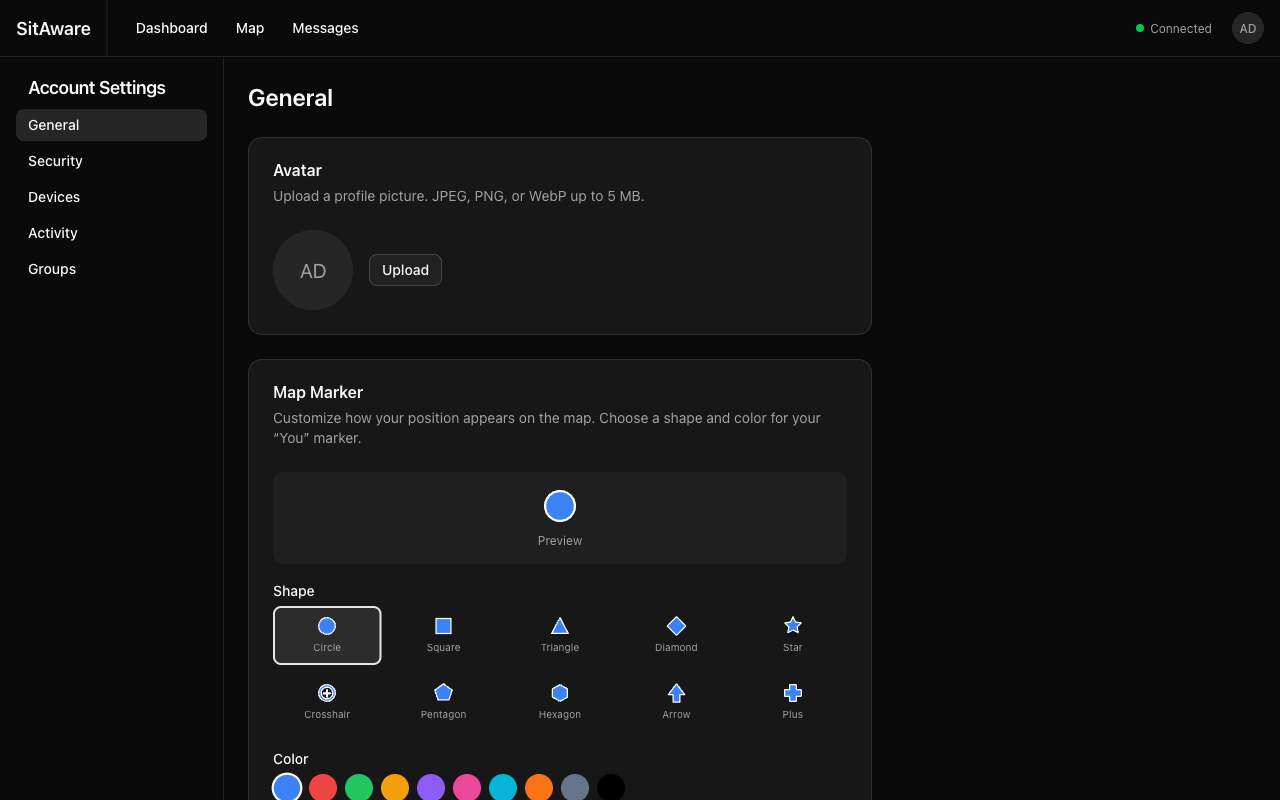
Avatar
Upload a profile picture that appears in the navigation bar, user listings, and message threads.
- Click Upload next to your current avatar (or initials placeholder).
- Select an image file (JPEG, PNG, or WebP, up to 5 MB).
- The avatar is uploaded to the server and appears immediately.
Map Marker
Customize how your position appears on the map.
Shape -- choose from 10 marker shapes: - Circle, Square, Triangle, Diamond, Star - Crosshair, Pentagon, Hexagon, Arrow, Plus
Color -- choose from 10 preset colors or enter a custom hex value (e.g., #ff6600).
A live preview shows how your marker will look. Click Save Marker to apply.
Your marker style is visible to all group members on the map.
Profile
Update your display name and email address.
- Username is set by the admin at account creation and cannot be changed
- Display Name appears on the map and in messages (optional)
- Email is used for account identification
Click Save Changes to update.
Security
See the dedicated MFA Setup Guide for detailed instructions on multi-factor authentication.
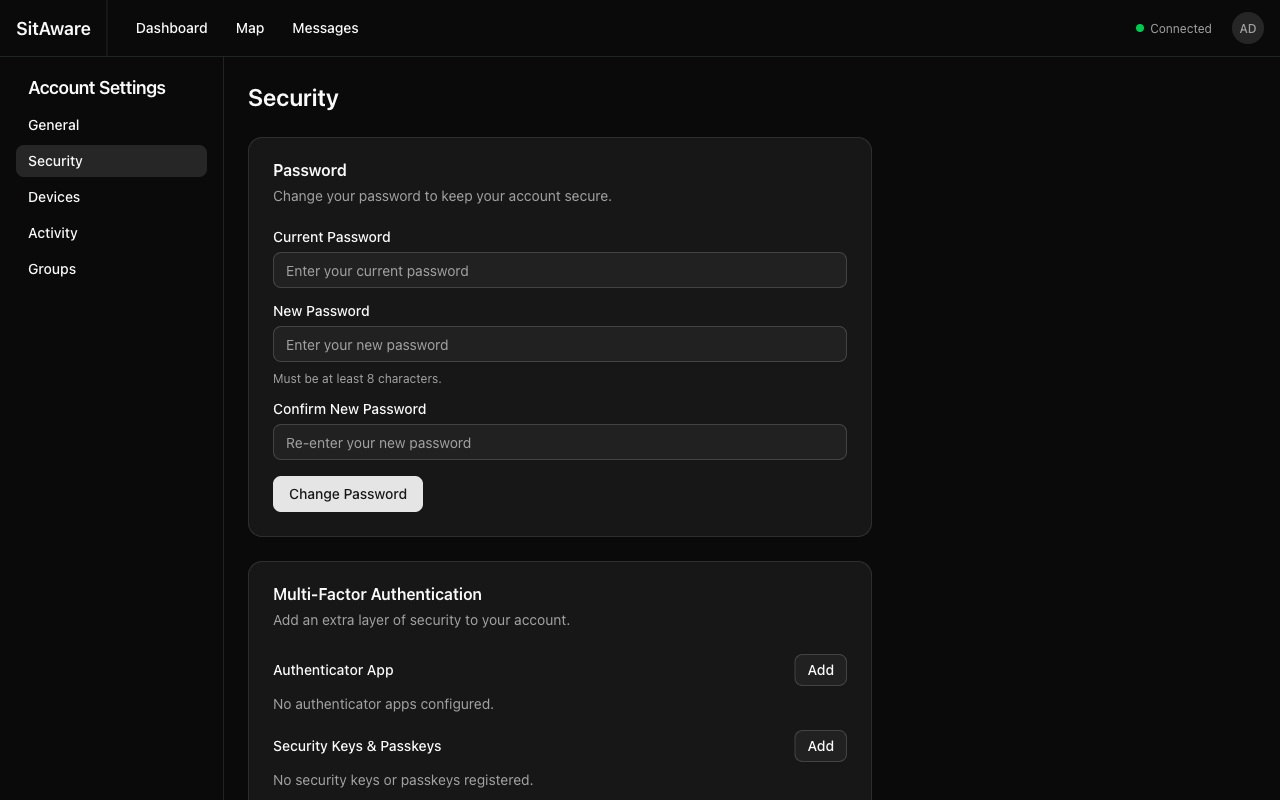
Changing Your Password
- Enter your Current Password.
- Enter your New Password (minimum 8 characters).
- Confirm the new password.
- Click Change Password.
Multi-Factor Authentication
From this page you can: - Add an Authenticator App (TOTP) - Add Security Keys & Passkeys (WebAuthn/FIDO2) - View and manage your registered MFA methods - Regenerate recovery codes
Devices
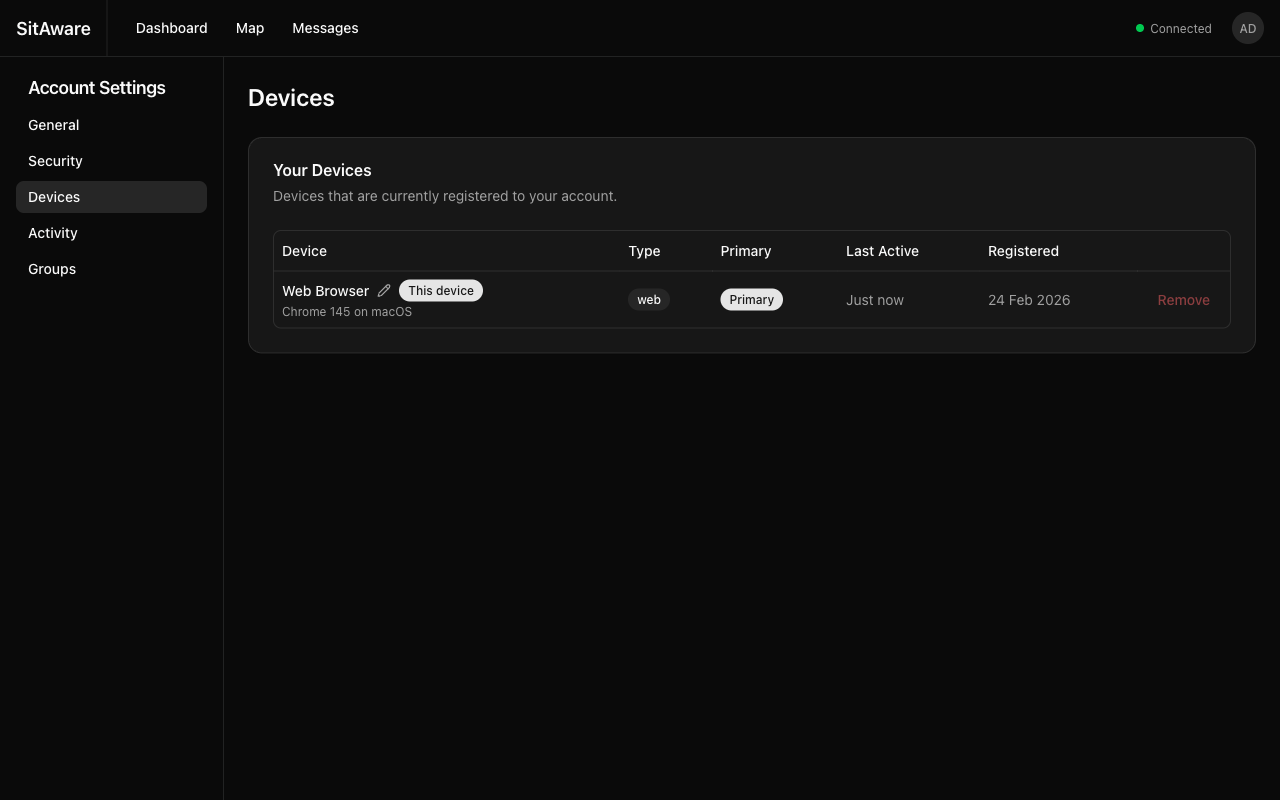
The Devices page shows all devices registered to your account.
Device Information
Each device entry shows: - Name -- the device name (auto-detected for web browsers, e.g., "Web Browser") - Type -- web, mobile, radio, or tablet - Primary -- indicates your primary device - Last Active -- when the device was last used - Registered -- when the device was first registered
Renaming a Device
Click the pencil icon next to the device name, enter a new name, and confirm.
Setting a Primary Device
Each user has one primary device. To change your primary device, click the action menu on the device you want to designate and select the primary option. The previous primary device is automatically demoted.
Removing a Device
Click Remove to unregister a device. You cannot remove your current device (the one you are using right now).
Note: Web browser devices are automatically registered when you log in. If you remove a web device and log in again from the same browser, it will be re-registered.
Activity
The Activity page shows your personal audit log -- a record of every action you have performed in Vincenty.
Each entry includes: - Time -- when the action occurred - Action -- what you did (login, send message, update profile, etc.) - Resource -- what was affected - IP Address -- your IP at the time
You can export your activity log as CSV or JSON for your records.
Groups
The Groups page shows all groups you are a member of, along with your permissions in each group: - Can Read -- you can see group members' locations and messages - Can Write -- you can send messages and share your location - Group Admin -- you can manage members within the group